
Every AI presentation maker can generate a first draft. You type a prompt, wait a few seconds, and slides appear. It feels like magic. The problem is that the first draft is never the final draft.
Real presentations go through rounds of feedback. Your manager wants changes. A stakeholder questions the framing. You realize slide seven should come before slide four. The data gets updated. Someone asks for an executive summary. This is normal. This is how presentations actually get made.
The question isn’t whether an AI tool can generate slides. The question is what happens after. Most tools get you 80% of the way there, then leave you stuck. The last 20% ends up taking longer than the first 80% did. And that last 20% is where the difference between a mediocre presentation and a great one actually lives.
The 80% Trap
A fast first draft feels like progress. You went from nothing to a full deck in minutes. But then reality sets in. Feedback comes back. Content needs to change. A slide needs restructuring. You need to add a conclusion slide that summarizes everything. And suddenly you’re fighting the tool instead of finishing the presentation.
This happens because most AI presentation tools are built for generation, not iteration. They’re optimized to impress you in the first five minutes. What happens in the next five hours is your problem.
There are two common ways this breaks down. Some tools generate slides as images or code. The output looks polished, but it’s frozen. You can’t edit it. Want to change one word? Regenerate the entire slide and hope it comes out right. Need to adjust the spacing? You can’t. The visual is locked.
Other tools give you editable slides, but the layouts are fragile. Every change breaks something. You add a sentence and the text overflows. You delete a bullet point and spend twenty minutes realigning everything else. You move a section and the whole slide falls apart. These tools technically let you edit, but editing feels like punishment.
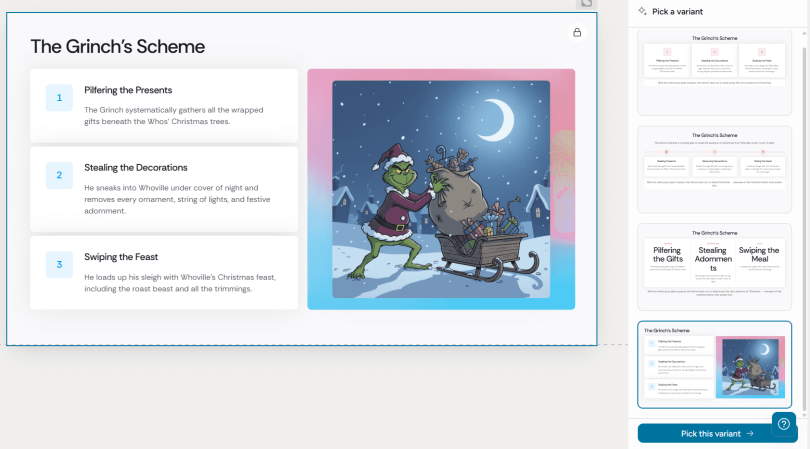
Image Alt text: Alai responsive canvas showing how layouts adapt automatically during editing
The result is that people spend more time on the last 20% than they did on the first 80%. They’re manually fixing layouts, regenerating slides hoping for better results, or giving up and accepting something they’re not happy with. The AI saved time on the draft but created more work overall.
What Real Iteration Requires in an AI Presentation Maker
If you think about how presentations actually evolve, it becomes clear what an AI presentation maker needs to support.
The canvas needs to adapt instead of break. When you add content, spacing should adjust automatically. When you remove something, the remaining elements should reflow naturally. You shouldn’t have to think about alignment and spacing every time you make a change. The layout should handle itself.
You need to be able to work with AI and make manual edits together. Sometimes you want the AI to rewrite something. Sometimes you want to tweak it yourself. Sometimes you want to do both. The tool should support all of these without forcing you into one mode. Human and AI should be able to build on each other’s work.
The AI needs to understand the context of your full deck. This sounds abstract, but it matters in practice. If your company uses an acronym like “ARR” on slide three, and you ask the AI to rewrite something on slide fifteen, it should understand what ARR means without you explaining it again. If you ask it to add an executive summary slide or a conclusion slide, it should be able to do that intelligently because it understands the content of the entire presentation.
These aren’t fancy features. They’re basic requirements for a tool that actually supports how presentations get made in the real world.
How Alai Is Built for Iteration
Alai approaches this differently. Instead of optimizing for an impressive first draft that falls apart during editing, it’s designed around the reality that presentations change. The goal is to make that last 20% feel easy instead of painful.
It starts with showing you four layout options for every slide. This might seem like a generation feature, but it’s actually an iteration feature. When you pick from four options at the start, you’re making better decisions earlier. You’re not going to get three rounds of feedback in and realize the fundamental layout is wrong. You chose the right direction from the beginning because you could see the alternatives.
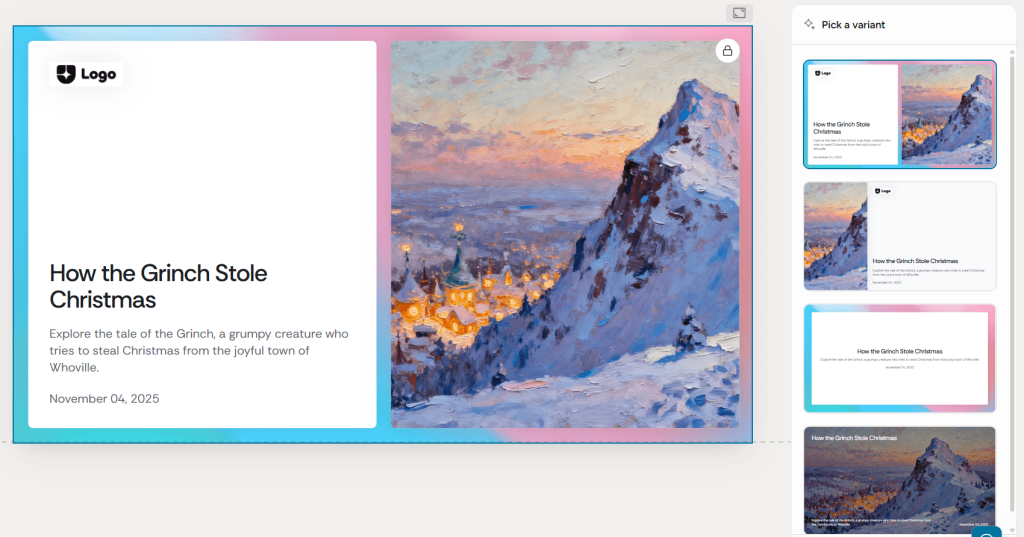
Image Alt text: Alai showing four different layout options for the same slide content
The canvas in Alai is responsive. This means layouts adapt as you make changes. Add more content and the spacing adjusts. Remove something and the remaining elements reflow. You’re not spending time on manual alignment. You’re not afraid to make changes because you know the layout won’t break. This changes your relationship with editing. Instead of avoiding changes because they’re painful, you make them freely because they’re easy.
Alai also has Agent Mode, which lets you describe changes in natural language. You can say things like “make this slide more visual” or “simplify the bullet points on slides 5 through 8” or “add a conclusion slide that summarizes the key points.” The AI makes the changes across your deck based on what you describe. This is faster than clicking through menus and options, especially when you need to make changes across multiple slides.
The AI in Alai is context-aware. It understands your entire deck, not just the slide you’re currently editing. If you’ve used specific terminology or acronyms earlier in the presentation, the AI knows what they mean when you reference them later. If you ask it to generate an executive summary or agenda slide, it can do that intelligently because it understands the full content. This keeps your deck consistent as you iterate, instead of slowly drifting into inconsistency with each round of changes.
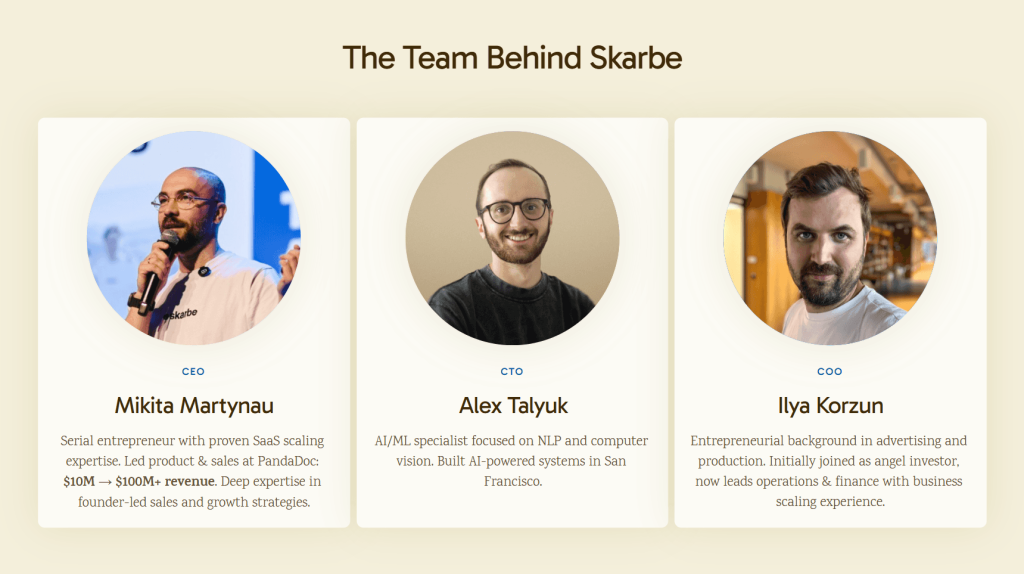
Image Alt text: Clean and concise team slide created on Alai showing professional design quality
For slides that need complex visuals like infographics or detailed diagrams, Alai integrates Nano Banana Pro. This generates visually rich slides with proper text rendering. But unlike static images, these slides remain editable. You can refine them with general instructions or make targeted edits to specific elements. They’re also theme-aware, so they match the look of your deck automatically. You get the visual impact of custom graphics without losing the ability to iterate on them.
You can learn more about how Alai handles iteration in the Alai 101 guide or read about the design philosophy behind the tool.
What This Means in Practice
When an AI presentation maker is built for iteration, the whole experience changes. You’re not dreading feedback because you know changes are easy to make. You’re not settling for slides you’re not happy with because fixing them feels impossible. You’re not spending more time on the last 20% than the first 80%.
Instead, iteration makes your presentation better. Each round of feedback is an opportunity to improve, not a burden to manage. The deck evolves naturally from first draft to final version without the painful gap in between.
When your deck is finished, you can export it as a PowerPoint file or PDF. The formatting stays intact. You can also present directly from Alai or share a link with analytics to track how people engage with your slides.
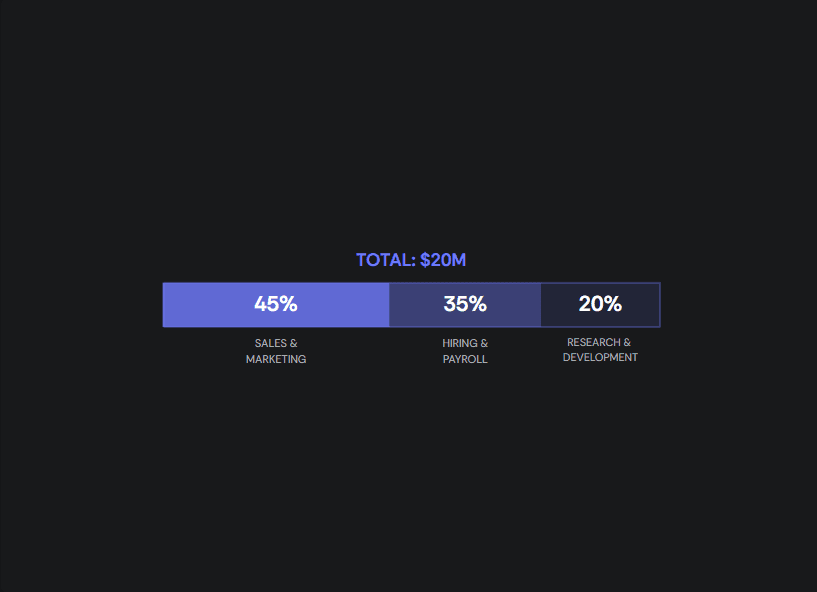
Image Alt text: Example of polished presentation slide created on Alai showing visual fund usage breakdown
The best AI presentation maker isn’t the one that generates the most impressive first draft. It’s the one that helps you get from first draft to final deck without the painful middle. That’s what being built for iteration actually means.
Alai gets you 80% there in minutes, then makes the last 20% easy instead of painful. Try it free at getalai.com.